
You can not select more than 25 topics
Topics must start with a letter or number, can include dashes ('-') and can be up to 35 characters long.
 jasonfoknxu
d61c05b3d2
jasonfoknxu
d61c05b3d2
|
4 years ago | |
|---|---|---|
| _img | 4 years ago | |
| LICENSE | 4 years ago | |
| README.md | 4 years ago | |
| switch-ethernet.ps1 | 4 years ago | |
README.md
Switch Ethernet (PowerShell)
A simple script to change the priority of two Network Interfaces (NICs).
Useful for switching between two networks or change the priority of Ethernet and Wi-Fi.
✨ Requirements
- Text Editor
- PowerShell
- Only support Windows
- Admin Permission
- Basic technical knowledge
📓 How To Use?
- Open the ps1 file with text editor
- Open setting / control panel to view the name of both NIC
- Change the
$net1_name&$net2_nameto your NIC's name, change the$check_ip_urlif you want - Create a shortcut to the script
powershell -f <PATH_OF_THE_SCRIPT>(For example,powershell -f "C:\Users\jasonfoknxu\Documents\switch-ethernet.ps1") - Right-click the shortcut ➡️ Properties ➡️ Shortcut (tab) ➡️ Advanced ➡️ Select
Run as Administrator - Execute the script by clicking the shortcut
- Input
1to select first network,2for the second network,0for returning back to default (auto) - Done
⭐ Example
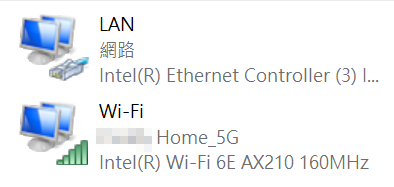
There are two networks, the name are LAN and Wi-Fi
You can select your favorite IP checking server or empty ($check_ip_url = "") to disable IP checking
The config would be like the following:
$net1_name = "LAN"
$net2_name = "Wi-Fi"
$check_ip_url = "https://api.ipify.org"
⚙️ How it works?
The script will change the Interface Metric of target NIC to lower, another NIC to higher Metric